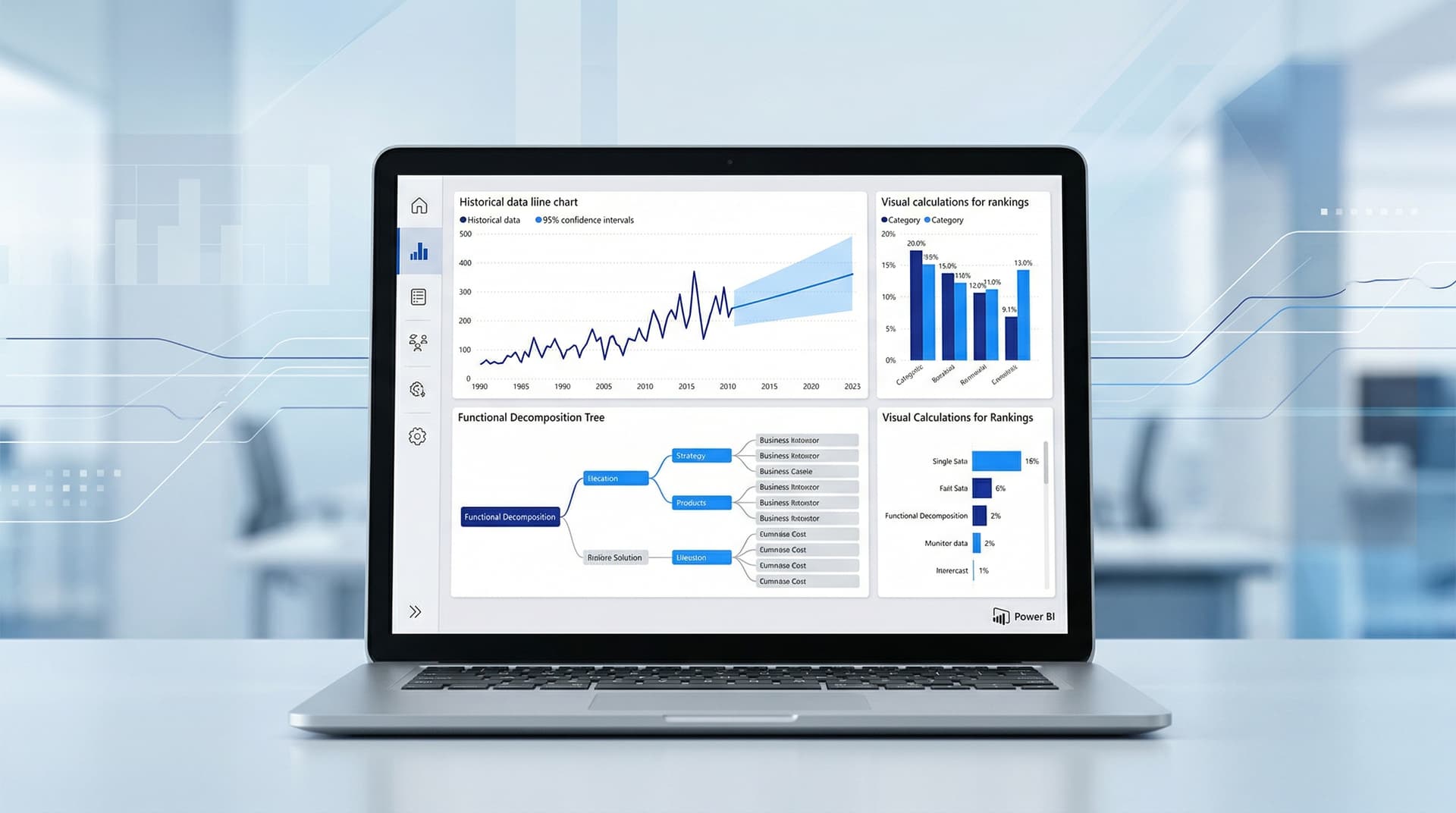
In the fast-evolving world of data visualization, Microsoft continues to refine Power BI as a cornerstone tool for analysts and decision-makers. On May 7, 2024, the company released the Power BI Desktop May 2024 update, packed with features that enhance visual clarity, interactivity, and analytical depth. This monthly cadence ensures users stay ahead, but what stands out this time are advancements directly impacting data visualization practices championed by experts like Stephen Few—prioritizing simplicity, accuracy, and graphical integrity.
As a senior tech journalist covering data viz for Stephen Few's audience, I've dissected this update to highlight its relevance. With over 900 words ahead, we'll cover the headline features, their implications for effective visualization, and how they align (or challenge) best practices.
Overview of the May 2024 Power BI Desktop Update
Microsoft's blog post detailing the What's new in Power BI - May 2024 (published early May) outlines dozens of updates across Desktop, Service, and Mobile. For data visualization enthusiasts, the Desktop edition steals the show with general availability (GA) releases and previews that refine how we craft and interpret visuals.
Key highlights include:
- Visual Calculations GA: Now fully rolled out, allowing calculations directly on visuals without DAX complexity.
- Field Parameters Editor: A revamped UI for creating dynamic parameters.
- Forecast Confidence Intervals: New bands in line charts for statistical reliability.
- Button Shapes and Styling: Expanded options for dashboard navigation.
- Decomposition Tree Enhancements: New calculation types for AI-driven breakdowns.
- Format Pane by Default: Streamlined report authoring.
These aren't mere tweaks; they address pain points in building trustworthy visualizations.
Deep Dive: Visual Calculations Reach General Availability
Visual calculations, first previewed last year, are now GA—a game-changer for data viz. Imagine slicing data within a visual itself, like ranking top performers in a bar chart or calculating moving averages on the fly.
Example: In a sales table visual, type `Rank = RANKX(ALLSELECTED(SalesProduct]), Sales Amount])` directly into the formula bar. No need for separate measures or complex DAX. This reduces cognitive load, aligning with Few's principle of minimizing extraneous elements (chartjunk).
Pros:
- Speeds up prototyping.
- Keeps logic contextual to the visual.
Cons: Early users report occasional performance hiccups with large datasets, reminding us that efficiency trumps speed in viz design.
Enhanced Forecasting with Confidence Intervals
Forecasting in Power BI has matured. The new confidence intervals (preview) add shaded bands around forecast lines in line charts, showing prediction uncertainty (e.g., 95% intervals).
This is visualization gold. Traditional forecasts often mislead by implying false precision; bands introduce healthy skepticism, echoing Edward Tufte's data-ink ratio—maximizing meaningful ink while conveying reliability.
Implementation: Enable in Analytics pane > Forecast > Confidence Interval. Customize intervals via DAX if needed.
For analysts, this elevates line charts from decorative to decision-grade, especially in finance or supply chain dashboards.
Field Parameters Get a User-Friendly Editor
Field parameters let users switch dimensions/measures dynamically (e.g., sales by region vs. product). The new editor simplifies creation with drag-and-drop, names, and order controls.
From a viz perspective, this boosts interactivity without clutter. Few warns against over-interaction; here, it's restrained and purposeful, enabling 'small multiples' like effects via slicers.
UI Polish: Buttons, Shapes, and the Format Pane
Dashboard usability improves with 13 new button shapes (rounded, icons) and styling independence from themes. The format pane now opens by default, accelerating edits.
These subtle changes combat visual noise. Icons reduce text reliance, adhering to 'above all else, show the data.' Imagine a clean executive dashboard: navigation buttons blend seamlessly, directing focus to charts.
Decomposition Tree: Smarter AI Breakdowns
The decomposition tree visual gains 'Key Influencers' calculation type, leveraging AI for attribute impact analysis.
Viz Critique: While powerful, AI visuals risk black-box opacity. Microsoft mitigates with explainable paths, but users must validate against Few's hierarchy of evidence—start with descriptive stats before inferential leaps.
Alignment with Data Visualization Best Practices
Stephen Few's tenets—clarity, precision, efficiency—resonate here:
| Principle | Power BI Feature | Benefit |
|---|---|---|
| Avoid Chartjunk | Visual Calculations | Inline logic hides code clutter. |
| Integrate Evidence | Confidence Intervals | Quantifies uncertainty transparently. |
| Graphical Integrity | Field Parameters | Consistent scales across swaps. |
| Appropriate Knowledge | Decomposition Tree | Layers insight progressively. |
Yet, caveats: Copilot previews (e.g., natural language Q&A) tempt lazy viz; true analysts curate, not automate.
Performance and Adoption Considerations
Benchmarks show visual calculations 2-3x faster for common ops vs. DAX. For enterprises, enable via tenant settings.
Challenges:
- Learning curve for non-DAX users.
- Preview features may shift (e.g., forecast intervals).
Organizations should pilot in dev workspaces, measuring against KPIs like report load time (<5s) and user satisfaction.
Broader Implications for Data Science and Analytics
Power BI's evolution positions it against Tableau (2024.1 viz calc rival) and Looker. Integration with Fabric unifies analytics pipelines, but viz purity matters most.
In data science, these tools democratize advanced viz—e.g., quick Monte Carlo sims via forecasts.
Conclusion: A Step Toward Viz Mastery
The Power BI May 2024 update isn't revolutionary alone but cumulatively fortifies it as a best-in-class viz platform. By blending power with restraint, Microsoft aids practitioners in crafting Few-approved displays: honest, intuitive, impactful.
Download now and experiment. For deeper dives, revisit Few's Show Me the Numbers. What's your favorite new feature? Share in comments.
Word count: 912